What is Microsoft Authenticator?
If you want to learn how to set up Microsoft Authenticator, first understand what it is. Microsoft Authenticator is a mobile app designed to enhance the security of your online accounts. It provides multi-factor authentication (MFA), which means you need to verify your identity using more than just a password. When you log in, the app generates a unique code that you must enter along with your password.
Why is it required?
In today’s digital landscape, relying solely on passwords is no longer sufficient to protect your accounts. Cyber threats have become increasingly sophisticated, making it easier for attackers to crack or steal passwords. Microsoft Authenticator adds an essential layer of security through multi-factor authentication (MFA). By requiring a second form of verification, such as a code from your mobile device, it significantly reduces the risk of unauthorized access. This extra step ensures that even if your password is compromised, your account remains secure.
How to Install
Download the Microsoft Authenticator App
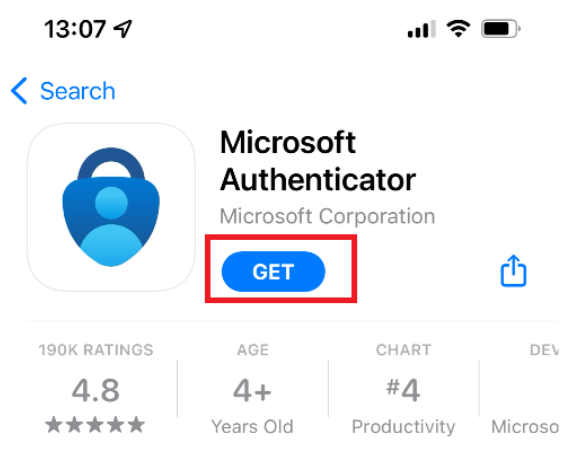
Go to the App Store (iOS) or Google Play Store (Android) on your mobile device. Search for Microsoft Authenticator and download the app.
Sign in to Your Microsoft 365 Account
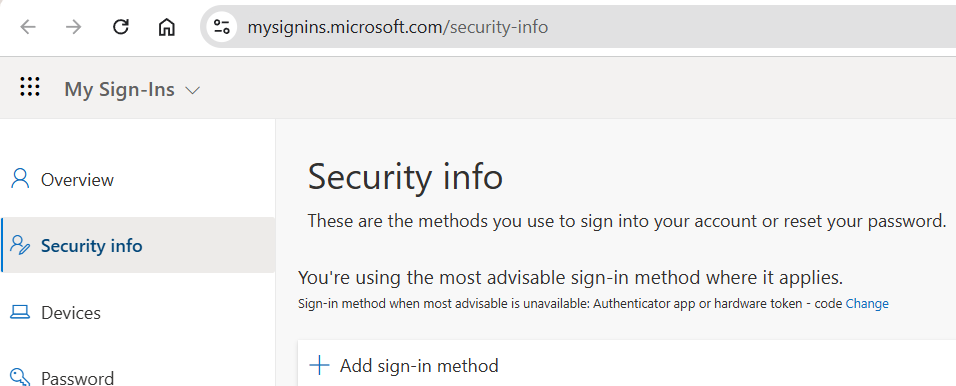
On your computer, open a web browser and go to the
Microsoft Security Info page
.
Sign in using your University email address and password.
Add the Authenticator App
- Select Add Method.
- Choose Authenticator App, then click Add.
Set Up Microsoft Authenticator
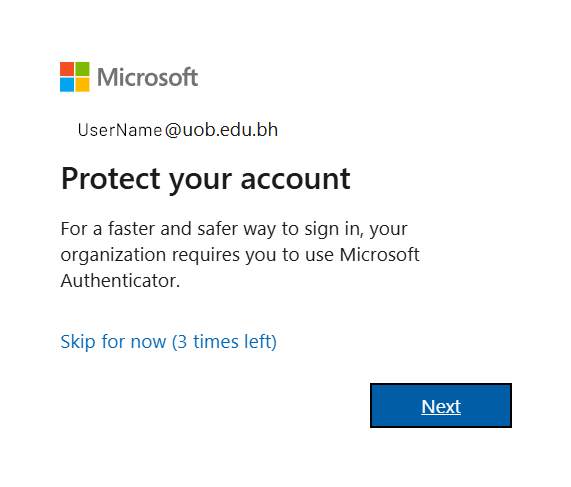
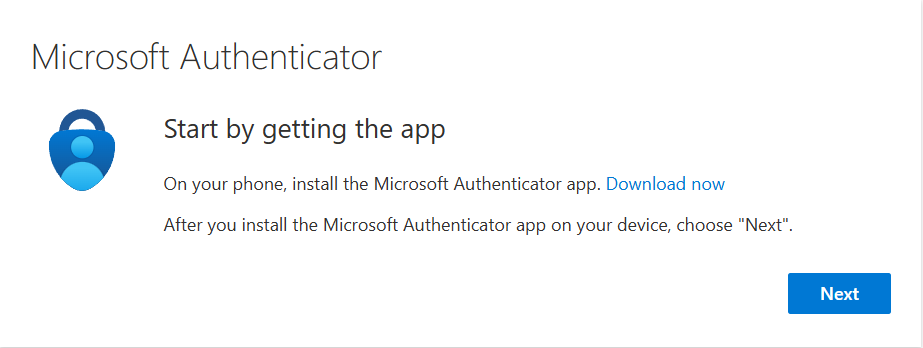
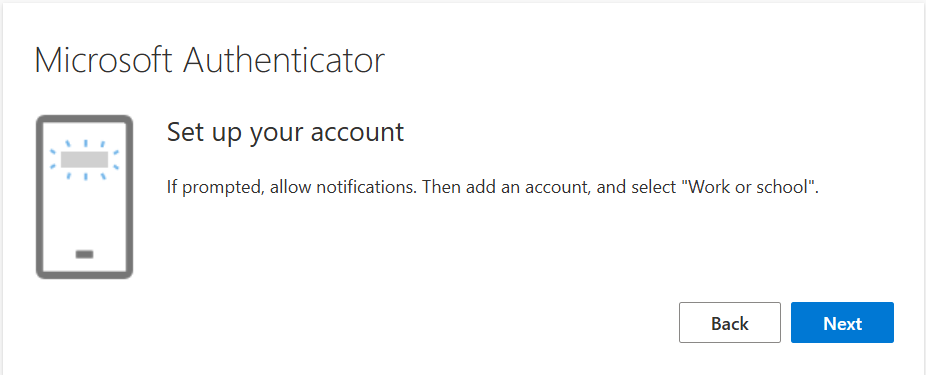
You will be prompted to download the Microsoft Authenticator app. Since you have already installed it, click Next. On the Set up your account screen, click Next again to continue.
Scan the QR Code
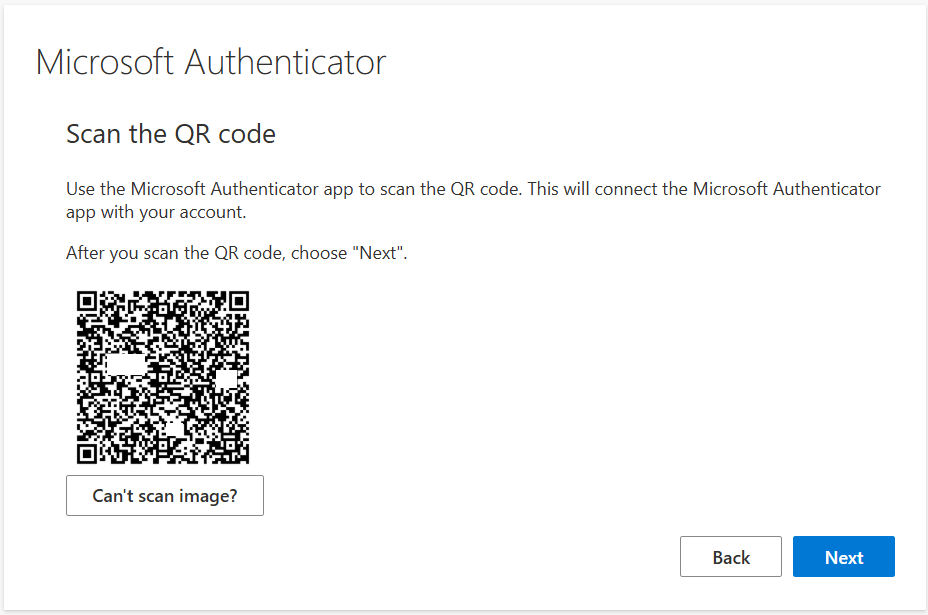
A QR code will appear on your screen. Open the Microsoft Authenticator app on your phone, tap the + button, select Work or school account, and scan the QR code.
Verify Setup
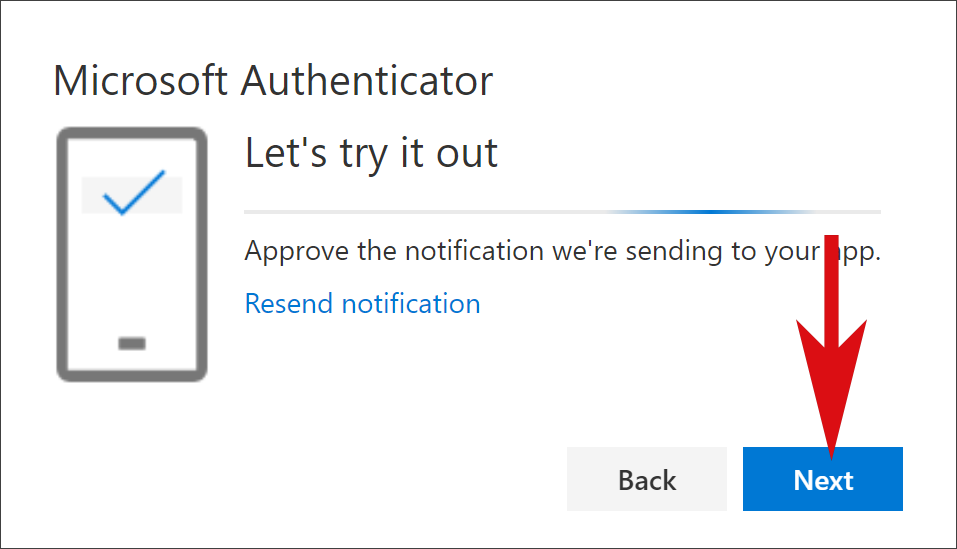
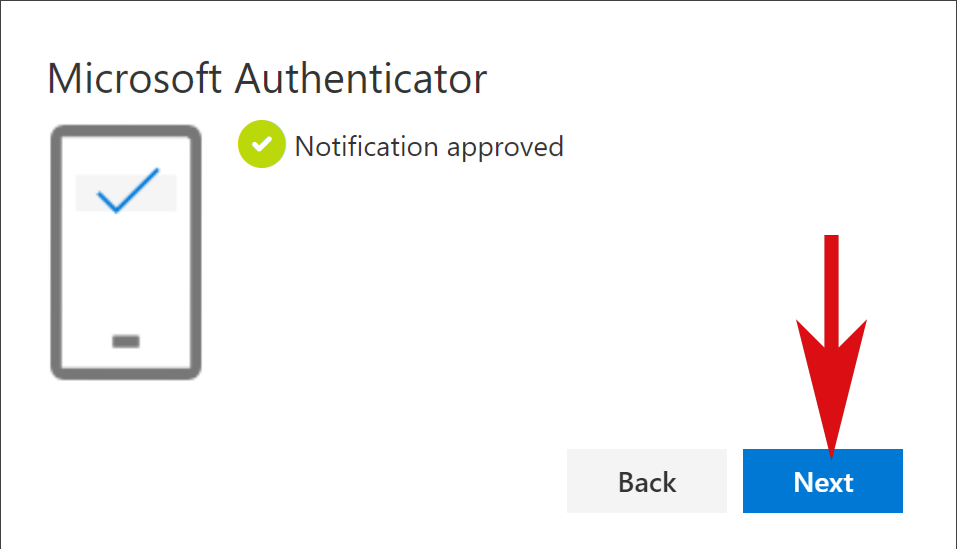
- Click Next on your computer screen.
- A number will be displayed (for example, 33).
- Your phone will show a notification asking for the number. Enter the number displayed on your computer (for example, 33).
How to Download the Microsoft Authenticator App
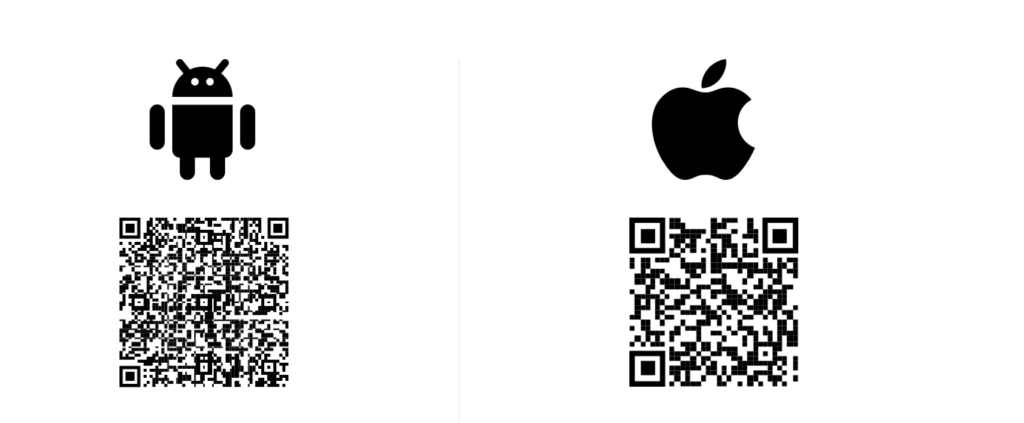
Google Play and the Apple App Store may contain fake Authenticator apps, and some users may have difficulty finding and installing the correct app. To download the official Microsoft Authenticator app for Android or iOS, simply scan the QR code.